|
Setting up Outlook Express for Multiple Email Addresses
If you have arranged to have more than one email address at Chesapeake.Net , one way of setting up Outlook Express to retrieve your email is to use the built-in "message rules" feature of your Outlook Express program. In order to do this you must first make sure that you have Microsoft Outlook Express version 5.0 or greater installed on your machine. Microsoft Outlook Express 5.0 can be downloaded for free from www.microsoft.com
Once Outlook Express 5.0 is installed, use the following instructions to setup your email accounts on your PC. These instructions are only for those customers that wish to retrieve multiple email addresses on a single PC. Customers that have more than one PC my setup each PC with a single email name using our regular email setup instructions
SETUP INSTRUCTIONS
This method will place email messages addressed to each email address into its own folder in Outlook Express. Although this will provide a convienient method of separating your various email accounts, this will NOT prevent other users of your PC in your household from viewing your email..
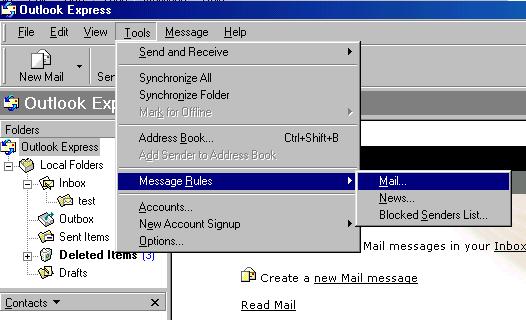
- Once you have opened Outlook Express 5.0, Select Tools , Message Rules and then Mail . The picture below shows the steps
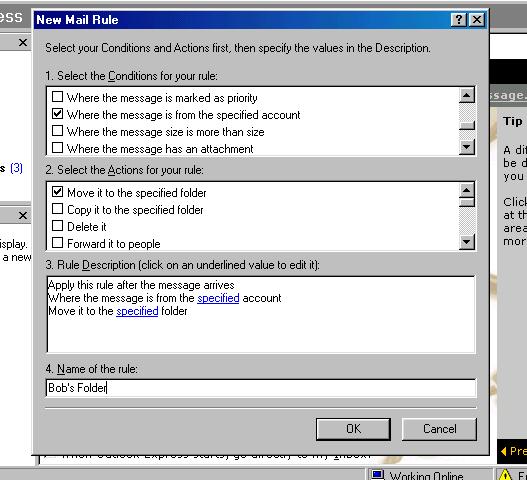
- Check the box that has: "Where the message is from the specified account."
- Check the box that has: "Move it to the specified folder."
- Set the name of the rule. You can call this whatever you want.
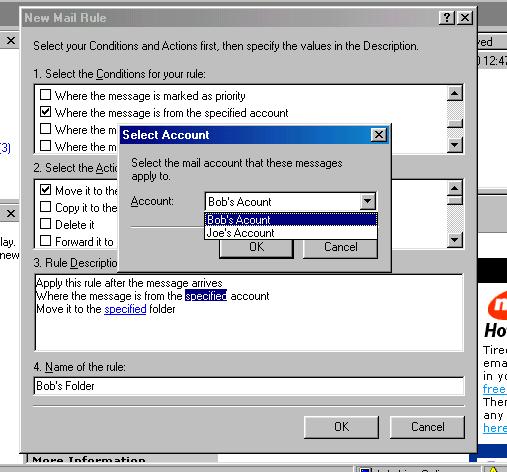
- Click the first blue text, "Specified." This is the one before the word, "account."
- Select the account that you would like in the separate folder, and then click OK.
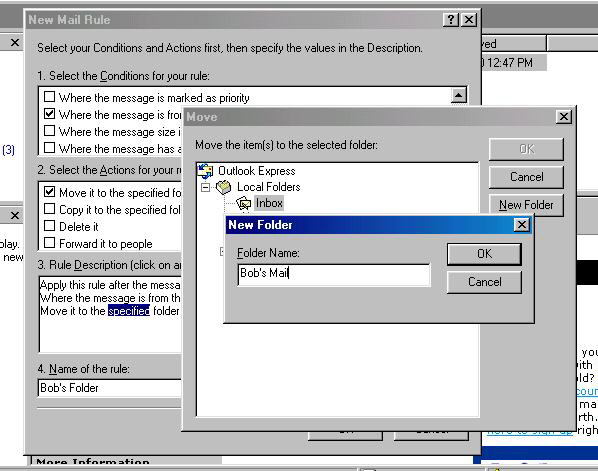
- Click on the second blue text, "Specified." This is the one before the word, "folder."
- Click on "Inbox."
- Click on "New Folder."
- Enter what you want the folder to be called. In the example since its Bob's account, we call it "Bob's Mail."
- Keep clicking on OK until you are back to the beggining of the Outlook screen.
- Make sure the folder you specified appears on the left. In the example the folder is called "Bob's Mail."
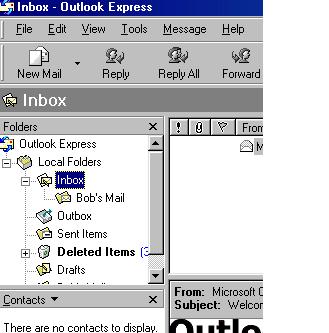
From now on, all mail sent to Bob's account will go to the "Bob's Mail" folder. To Read Mail for this user, click once on the "Bob's Mail" folder and the list of messages recieved for this account will be display to the right.
Repeat Steps 1-13 for each email account
Please contact us at support@chesapeake.net if you require further information or assistance with your Chesapeake.Net e-mail service, or call our Technical Support staff at 1-877-259-8436.
All content and images copyright Southern Maryland Internet, Inc.
|